Disconnecting Payments
.
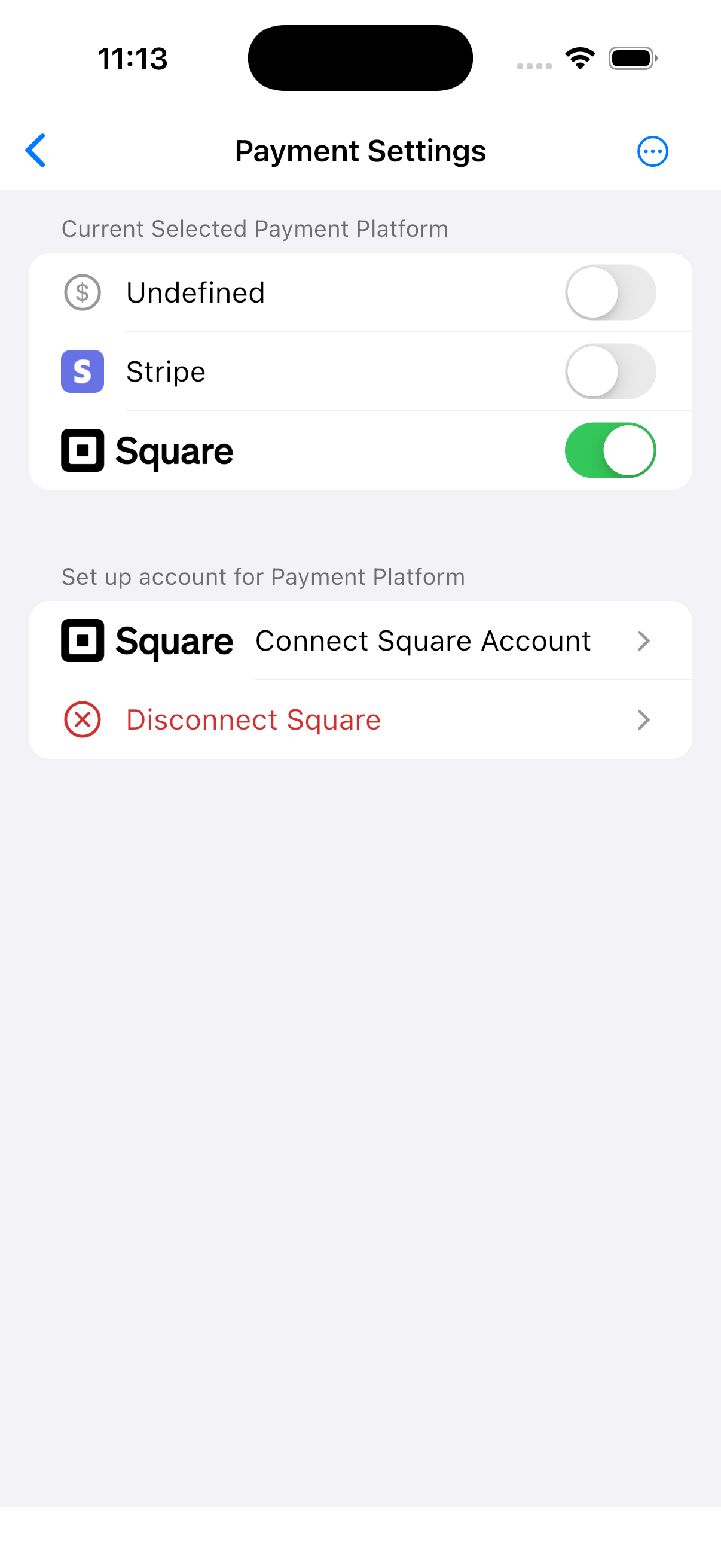
Main Page –> Preferences –> Payment Settings
SierraBooks provides secure, self-serve deauthorization controls that allow you to fully unlink, deprovision, and revoke your Stripe or Square integrations.
How to Disconnect Stripe or Square
Go to Preferences.
Tap on Payment Settings.
Under the Integrations section, you will see settings tiles for active integrations.
Tap the “Disconnect Stripe” or “Disconnect Square” settings tile.
A confirmation dialog will pop up to confirm your deauthorization intention.
Confirm the action to securely invoke the Cloud revocation endpoint, erase the local token secrets, and revert your merchant backend status back to Undefined.
🔒 Active Backend Switching Locks
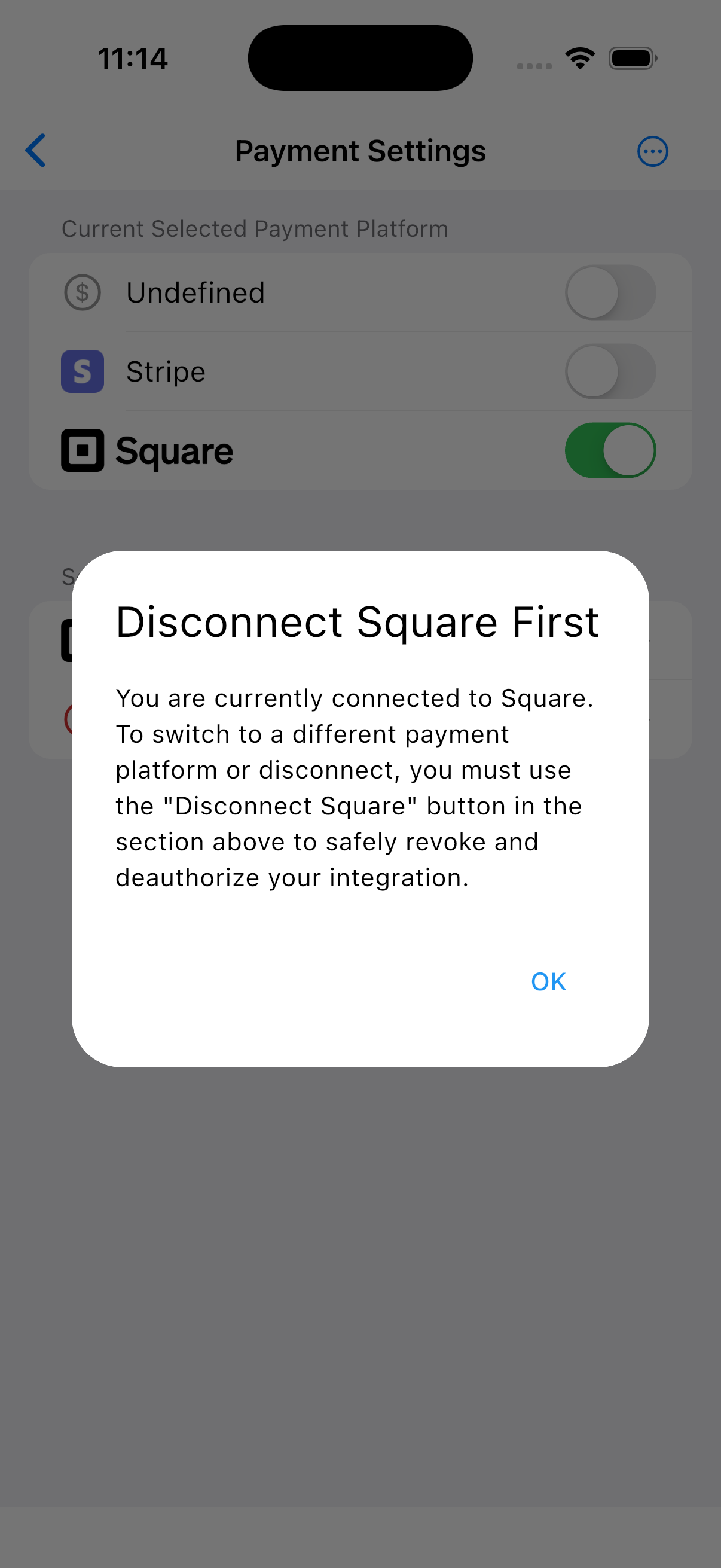
To protect your business transaction history and bookkeeping integrity, SierraBooks prevents you from toggling or switching to another payment platform while a Stripe or Square integration is actively connected.
If you attempt to choose a different provider before unlinking, a warning popup will display directing you to deauthorize your current platform first using the “Disconnect” button.
Screenshots.
Disconnect from Square Switch Platform Lock