PayPal Account Onboarding
.
-
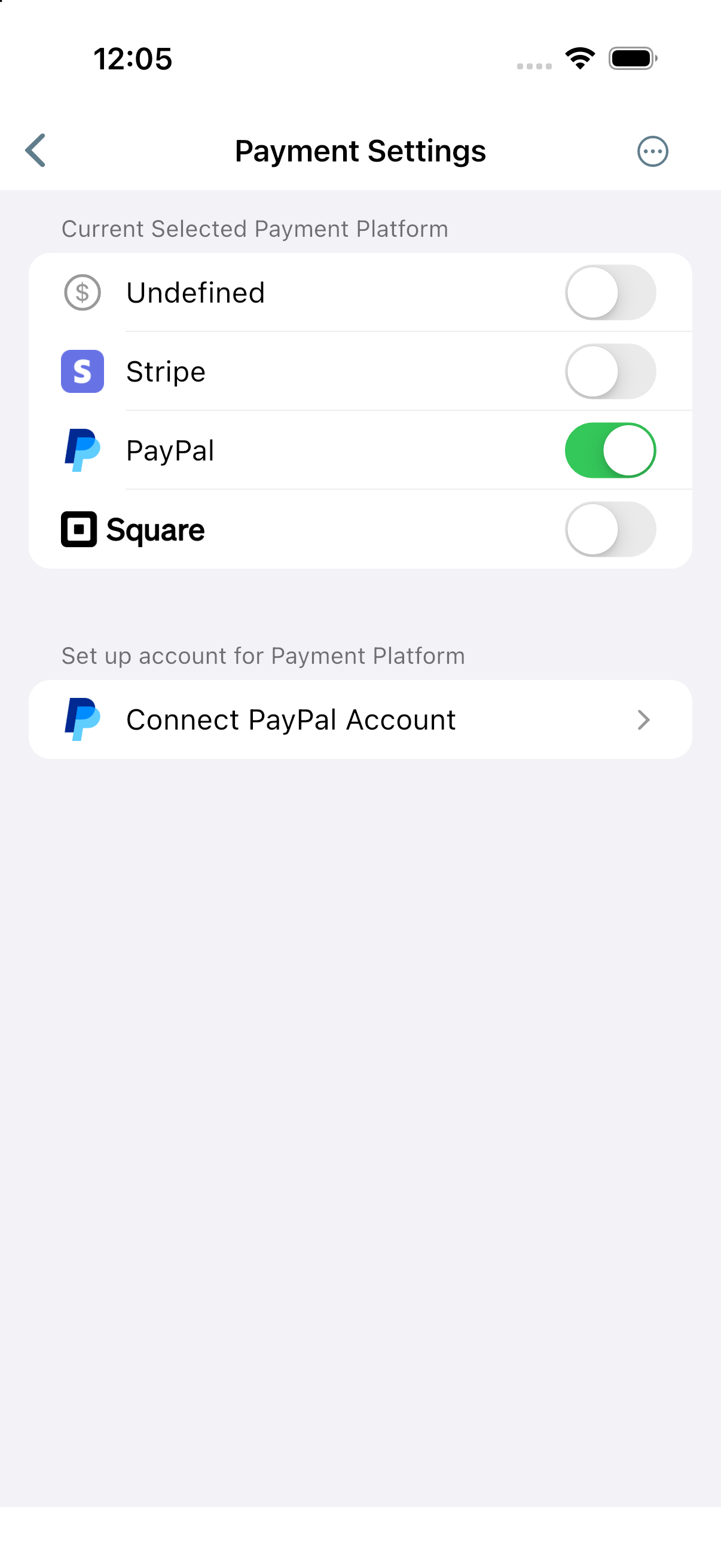
Under App Preferences click Payment Settings.
Toggle PayPal on.
Click Connect PayPal Account.
-
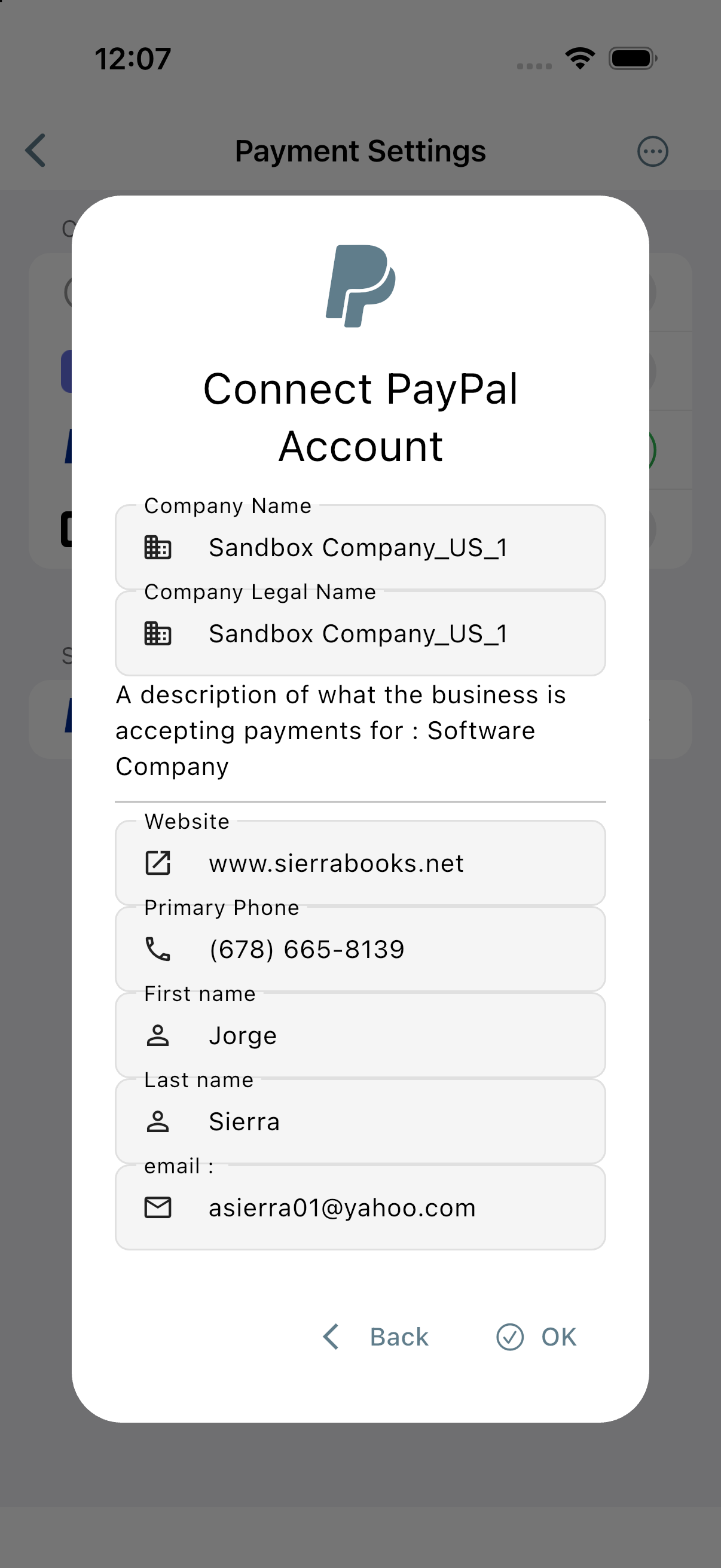
- Confirm or enter business and contact details:
-
Company Name and Company Legal Name
Business Description (what your business is accepting payments for)
Website URL and Primary Phone
First Name, Last Name, and Email
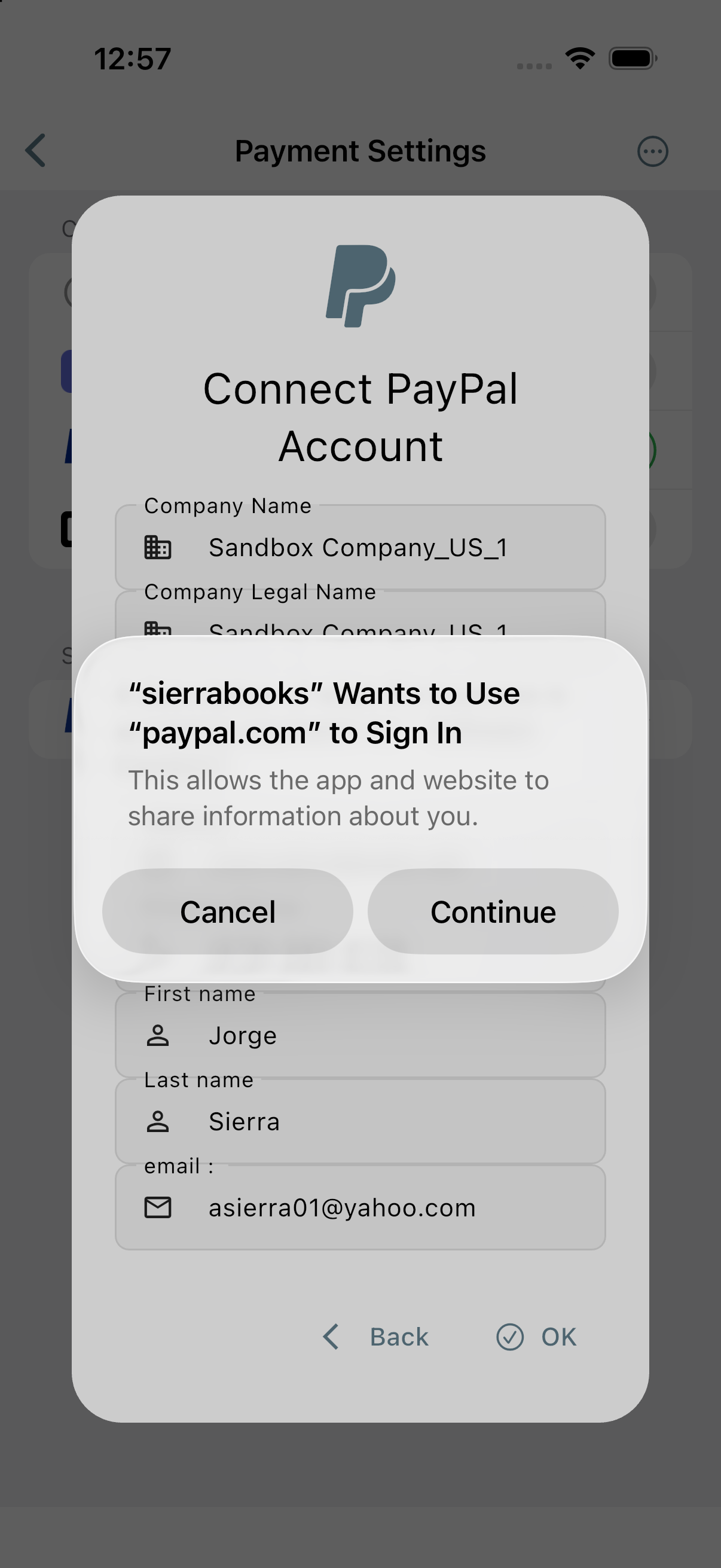
Click OK to launch the secure PayPal Partner Onboarding flow.
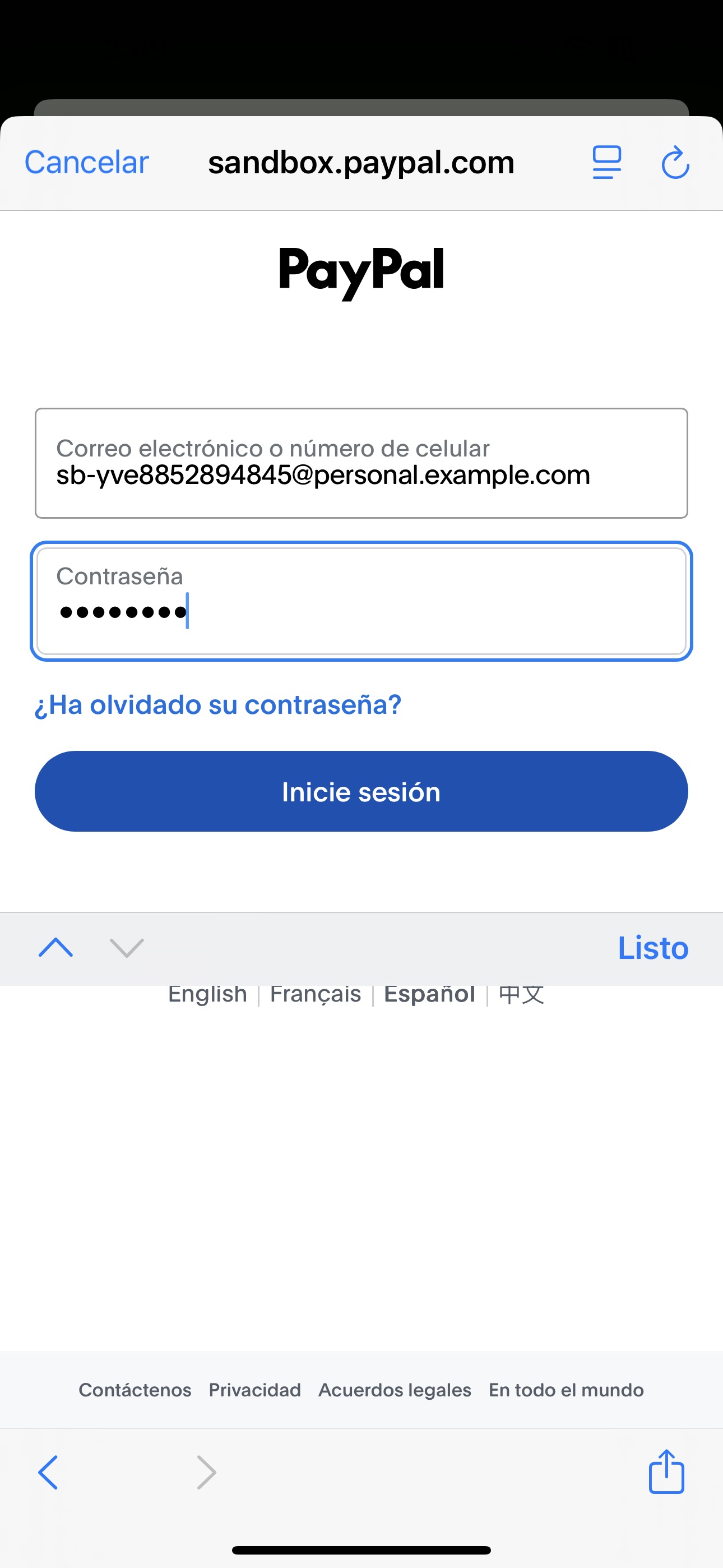
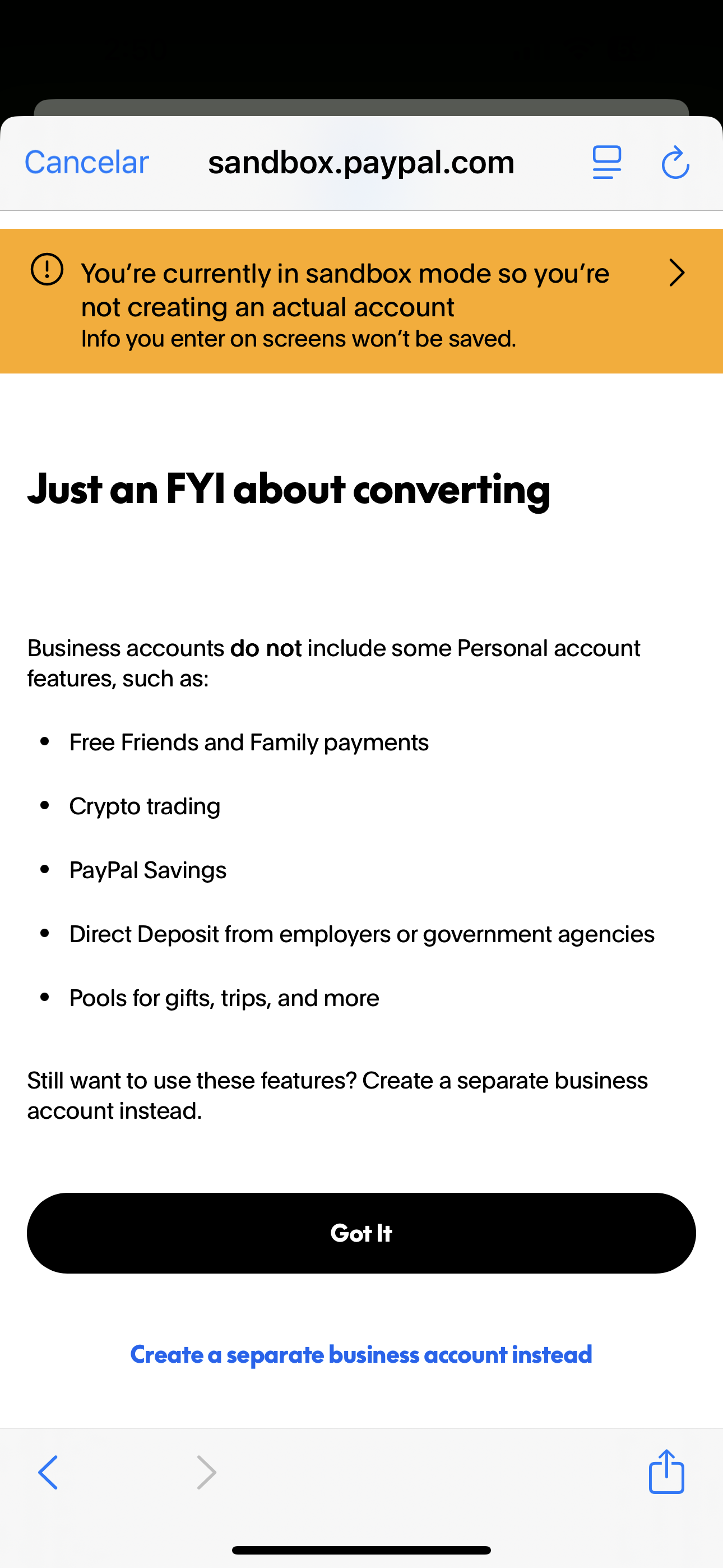
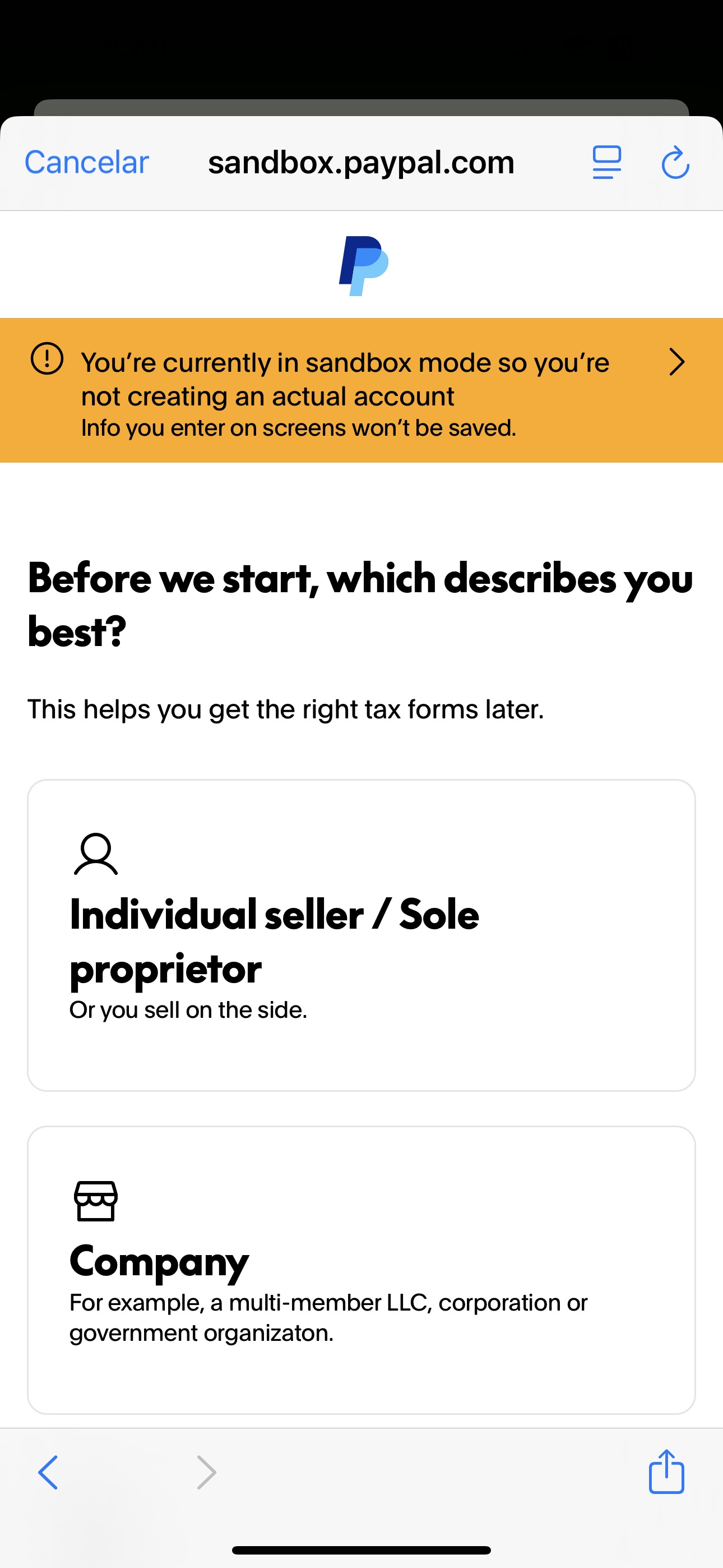
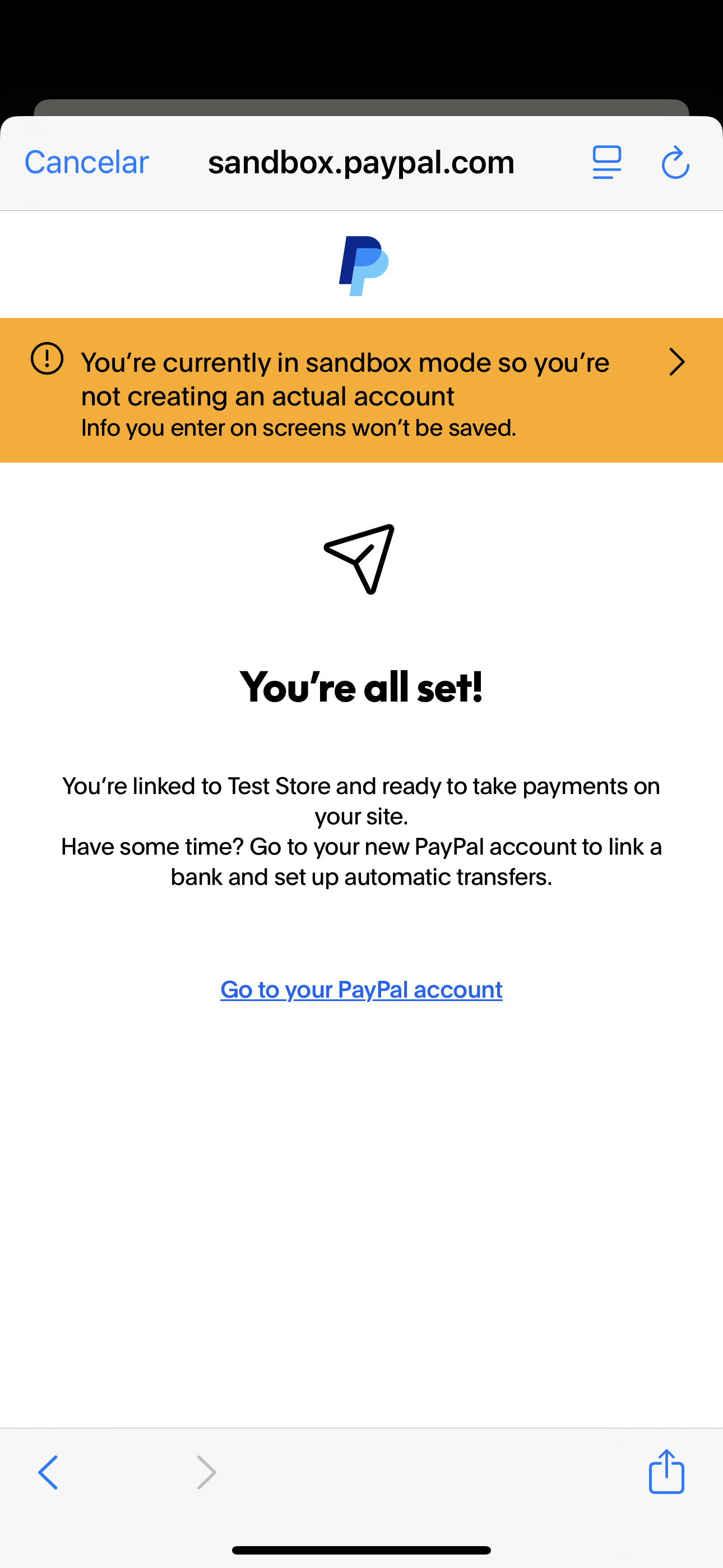
Sign in or create your PayPal Business account to link it with Sierrabooks.
—
Automated Bulk Import into SierraBooks
Connecting your PayPal Business account automatically initiates SierraBooks’ PayPal Bulk Import Engine. All your client invoicing and transaction records are pulled into your SierraBooks database, allowing you to seamlessly manage and reconcile your PayPal billing.
What Gets Imported
PayPal Customers & Payer Profiles - Payer contact information, full names, and email addresses. - Billing addresses and historical customer references.
PayPal Invoices & Line Items - Historical and pending PayPal v2 Invoices. - Itemized lines, descriptions, quantities, unit prices, and invoice totals. - Invoice statuses (Draft, Sent, Paid, Marked as Paid, Cancelled).
Payments & Transaction History - Captured payment transactions with precise timestamps. - Gross transaction amounts, PayPal processing fees, and net settlement numbers. - Payer transaction IDs for fast cross-referencing and bookkeeping.
Architecture & Reliability
Secure Partner Integration: Authorized via PayPal’s official partner authentication, utilizing scoped API credentials without storing sensitive passwords.
Idempotent Writes: All imported documents use deterministic keys (PayPal_{id}) to prevent duplicate entries even if imports run multiple times.
Background Processing: Heavy historical data is processed asynchronously in cloud workers, leaving your device responsive.
Live Sync Status: Progress is tracked in real-time so you know exactly when your full financial catalog is synchronized.
Step-by-Step Screenshots
Payment Settings Connect Dialog PayPal Flow Onboarding Complete